
PREMIUM LOGIN
ClassTools Premium membership gives access to all templates, no advertisements, personal branding and many other benefits!
| Username: | ||
| Password: | ||
|
Submit
Cancel
|
||
| Not a member? | ||
PREMIUM LOGIN
ClassTools Premium membership gives access to all templates, no advertisements, personal branding and many other benefits!
| Username: | ||
| Password: | ||
|
Submit
Cancel
|
||
| Not a member? | ||
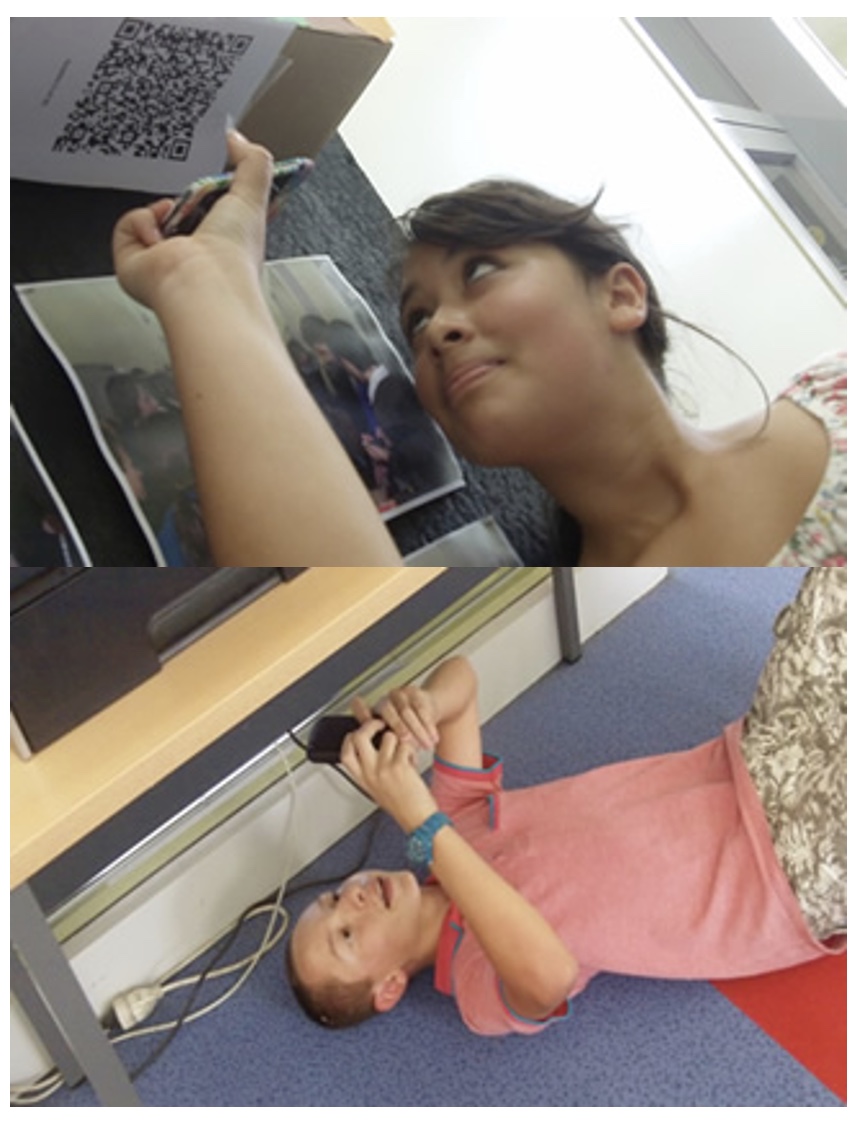
1. Arrange students into groups. Each group needs at least ONE person who has a mobile device.
2. If their phone camera doesn't automatically detect and decode QR codes, ask students to
4. Cut them out and place them around your class / school.
1. Give each group a clipboard and a piece of paper so they can write down the decoded questions and their answers to them.
2. Explain to the students that the codes are hidden around the school. Each team will get ONE point for each question they correctly decode and copy down onto their sheet, and a further TWO points if they can then provide the correct answer and write this down underneath the question.
3. Away they go! The winner is the first team to return with the most correct answers in the time available. This could be within a lesson, or during a lunchbreak, or even over several days!
4. A detailed case study in how to set up a successful QR Scavenger Hunt using this tool can be found here.
Question | Answer |
| 1. Alias | A link or shortcut for Macintosh computers to drives, most frequently used applications, files, and folders that you can create on your desktop. | 2. Applications 2 | Software programs for a particular use, such as Photoshop is an application used for digital image editing. 2 | 3. Clipboard 3 | A temporary place in memory to store text and graphics that have been cut or copied before pasting them into another document or another location. 3 | 4. Control Panel 4 | Lets you make modifications within your computer, like adding and removing programs, updating applications, and modifying system functions. 4 | 5. Cross platform 5 | Files or applications that can be read by different operating systems. 5 | 6. Dashboard 6 | A feature of Mac OS X that contains small programs called widgets that have a wide variety of uses for everyday tasks. 6 | 7. Desktop 7 | The screen displayed when the system has loaded. 7 | 8. Dialog box 8 | Appears and provides more commands or functions when you select a command or function. 8 | 9. Dock 9 | Usually at the bottom of the desktop, and is used to display applications, files, and folders. 9 | 10. Exposé 10 | Mini application that helps you move or copy items between different windows in an application and from one application to another using combinations of keys. 10 | 11. Finder 11 | At the top of the screen, it lets you navigate the computer; it also appears as a square, smiling face on the Dock. 11 | 12. Icons 12 | Displays your drives, portable media devices, and most frequently used applications, files, and folders on your computer screen as small picture representations. 12 | 13. Jump list 13 | Allows you to navigate around recent files, images, tasks in an application, and even web sites. 13 | 14. Jump Lists 14 | Used to navigate around recent files, images, or tasks. 14 | 15. Mac Help 15 | In Mac OS X provides answers to questions and also gives instructions on how to perform various functions by clicking underlined links. 15 | 16. Macintosh OS X 16 | The most recent operating system used on Macintosh computers. 16 | 17. Media Eject key 17 | Used to open and close the CD or DVD tray on the Mac. 17 | 18. Menu bar 18 | Contains commands from various menus specific to the Finder desktop interface. 18 | 19. Operating system 19 | Makes sure hardware and software work together nicely. 19 | 20. Peek 20 | Function that gives you the opportunity to watch open windows instantly disappear to display only the Windows 7 desktop. 20 | 21. Pin 21 | Function that allows you to \"pin\" programs to the task bar for quick access. 21 | 22. Pinning 22 | Allows you to pin your favorite programs or files to the taskbar. 22 | 23. Recycle Bin 23 | In Windows stores and restores deleted files. 23 | 24. Removable media 24 | CDs, DVDs, memory cards, or portable external hard drives and USB flash drives that can be transported to other computers. 24 | 25. Rip 25 | To copy audio tracks from a music CD to the Music library, then copy the selected tracks from a Playlist to a blank recordable CD. 25 | 26. Ripping 26 | Involves converting audio music from store bought CDs (or those that have not been compressed or converted to MP3 format) to be used on the computer as MP3 compressed format. 26 | 27. Save 27 | Command that saves the file as the same name with the same extension and to the same location. 27 | 28. Save As 28 | Command that saves files with different extensions for various purposes, saves to different locations, and creates different file names of the same file. 28 | 29. Shake 29 | Use this function by clicking the window you want to focus on and giving your mouse a shake. All other open windows will disappear except for your chosen window. 29 | 30. Snap 30 | Feature that allows you to resize open windows, simply by dragging them to the edges of your screen. 30 | 31. Stacks 31 | Feature that, when clicked, springs from the Dock to display the folder contents. 31 | 32. System Preferences 32 | Program on the Mac within the Apple menu allows you to make modifications within your computer, like adding hardware, adding and removing programs, updating applications, and modifying system functions 32 | 33. Taskbar 33 | In Windows is used to display minimized active files and applications, like the Dock on the Mac. 33 | 34. Title bar 34 | Contains the file or function name and the icon boxes to close, minimize, maximize, and restore the window size. 34 | 35. Toolbar 35 | Displays special commands and functions from each application. 35 | 36. Trash 36 | Icon used to remove and restore files. 36 | 37. Widgets 37 | Small programs that have a wide variety of uses for everyday tasks such as checking stock prices and finding weather information. 37 | 38. Windows 7 38 | The most recent operating system for PC computers. 38 | 39. Windows Media Player 39 | Lets you create or burn your own audio and video CDs from files that you can drag over from folders on the computer or in the library of the Media Player itself. 39 | 40. Aerial perspective 40 | Uses the lighter background contrast of the atmosphere with darker subjects that are closer to the viewer in landscapes to show a sense of depth. 40 | 41. ASCII type 41 | The American standard of type: it is plain text and unformatted and can be read by any application or computer. 41 | 42. Bitmap images 42 | Photographs, paintings, or complex designs that use millions of colors to record subtle gradations of tone in the image. 42 | 43. CMYK mode 43 | Reflects the computer\'s secondary colors, which are cyan, magenta, and yellow, with K standing for the black used to increase contrast. Used to create colors that will match those used in commercial printing. 43 | 44. Complementary colors 44 | Opposite colors. 44 | 45. Comps 45 | Show exactly what the final design will look like when printed. 45 | 46. Decorative type 46 | Sometimes used in headlines to create a specific meaning. 46 | 47. Emphasis 47 | Provides direction to various elements in a given design, promoting the concept that some things are more important than others. 47 | 48. Focal point 48 | Determined by an element\'s size, shape, color, texture, or position in the layout. Establishes accents that lead the viewer to it. 48 | 49. Font 49 | A set of characters of type. 49 | 50. Font size 50 | Measured in points instead of inches. Default setting is 12 points. 50 | 51. Font style 51 | Bold, italics, or underlined font. 51 | 52. Formal balance 52 | Places elements with equal distribution to convey trustworthiness and integrity. 52 | 53. Formats 53 | Brochures, CD covers, business cards, and posters are some of these. 53 | 54. Framing techniques 54 | A technique in which another subject surrounds the main subject for emphasis. 54 | 55. Grids 55 | Developed from a network of intersecting horizontal and vertical guidelines. 55 | 56. Guidelines 56 | Nonprintable lines that are used for exact placement of specific sized text and graphics boxes on brochures, flyers, web pages, and so on. 56 | 57. Hue 57 | The name of the color (red, green, and blue). 57 | 58. Informal balance 58 | Asymmetrical balance; uses elements that counterbalance one another to create a harmonious composition. 58 | 59. Justified alignment 59 | Places text equally on left and right sides in a column. 59 | 60. Kerning 60 | Technique used for pairs of characters in titles or headlines that may need to be brought closer together for a more consistent look. 60 | 61. Landscape orientation 61 | Horizontal layout design. 61 | 62. Leading 62 | Refers to the spacing between lines of text. 62 | 63. Leading lines 63 | A design technique used to create the effect of depth perception. 63 | 64. Linear perspective 64 | Where a horizon line is placed to approximate the eye level of the artist. 64 | 65. Lines 65 | Can be straight, angular, or curved, and they may be drawn in horizontal, vertical, or diagonal directions. 65 | 66. Margin guides 66 | Used for outer margins and for spacing between text and graphic boxes for folding procedures and alignment. Usually purple or blue in color. 66 | 67. Negative space 67 | Empty space. 67 | 68. One-point perspective 68 | Involves using converging lines to lead the eye to a subject or point along a horizontal line to provide depth in perspective within the image. 68 | 69. Points 69 | 1/72 of an inch. Way to measure font size. 69 | 70. Portrait orientation 70 | Vertical layout design. 70 | 71. Positive space 71 | Uses content to fill up space to identify or explain something in a particular page. 71 | 72. Radial balance 72 | Arranges elements around a central point and is used to promote unity or teamwork. 72 | 73. Raster images 73 | Photographs, paintings, or complex designs that use millions of colors to record subtle gradations of tone in the image. 73 | 74. RGB mode 74 | Light-emitted colors that can be created on the computer by mixing the electronic primary colors: red, green, and blue, using an additive process. 74 | 75. Rhythm 75 | A visual pattern of repeating elements that creates a sense of movement. 75 | 76. Roughs 76 | A full-size rendition of your design, including the layout of images and text and overall compositional elements that you show to the client. 76 | 77. Rule of Thirds 77 | Useful technique to emphasize the subject; dividing an image into thirds for placement of elements within the composition. 77 | 78. San serif type 78 | Type that does not contain extended strokes on the tops and bottoms of the letters. 78 | 79. Saturation 79 | The intensity of color (bright red or dull red). 79 | 80. Script fonts 80 | Used in announcements or invitations and convey the appearance of being created with a pen or brush. 80 | 81. Secondary colors 81 | Orange, green, and purple; created by mixing two primary colors. 81 | 82. Serif type 82 | Type containing what look like \"feet\" or extended strokes, on the tops and bottoms of the letters. 82 | 83. Shapes 83 | Usually considered closed forms or outlines. 83 | 84. Spacial recession 84 | The illusion of receding into the background which creats a sense of depth by combining elements and blending the tonal values to match the background. 84 | 85. Stop action 85 | Involves the illusion of motion freezing something or awaiting anticipation in a given time and space. 85 | 86. Symbol type 86 | A collection of related symbols, often called dingbats, that can be used for bullets, map symbols, or logos. 86 | 87. Symmetrical balance 87 | Places elements with equal distribution to convey trustworthiness and integrity. 87 | 88. Tactile texture 88 | Involves the actual feeling of a surface texture like a sculpture. 88 | 89. Tertiary colors 89 | Yellow orange, red orange, red violet, blue violet, blue green, and yellow green; ceated by mixing one primary and one secondary color. 89 | 90. Texture 90 | Describes surface quality, like rust, velvet, or sandpaper. 90 | 91. Thumbnails 91 | Sketched variations of an idea. 91 | 92. Tonal value 92 | Involves the lightness and darkness of an image by varying its tone or value to the surrounding background. 92 | 93. Tones 93 | Colors mixed with neutral grays can result in different tones of color. 93 | 94. Tracking 94 | Adjusts the spacing between characters and words. 94 | 95. Traditional primary colors 95 | Red, yellow, and blue; the main colors that create all others. 95 | 96. Two-point perspective 96 | Involves a more natural approach, similar to how we view the world around us, at an angle with two edge points along the horizon line. 96 | 97. Type alignment 97 | Style or arrangement of setting type. 97 | 98. Unity 98 | The organization of elements in a design as though they belong together. 98 | 99. Value 99 | The shading, tonality, or tint of a color (light and dark blue). 99 | 100. Value 100 | Determines depth and dimension by the range of lightness or darkness of an element. It is the shading, tonality, and tint of a color. 100 | 101. Value contrast 101 | The relationship between black and white or lightness and darkness of an image, and it is a result of the relationship between different elements; it produces both visual and emotional effects. 101 | 102. Vector images 102 | Illustrations, logos, drawings, or clip art that can be enlarged to any size without affecting the quality of the original image. It is produced mathematically. 102 | 103. Visual texture 103 | Used by designers and artists to create the illusion of texture in artwork, using varying line qualities, patterns, or adjusting the value and colors of an element. 103 | 104. .PSD 104 | Photoshop\'s extension when saving an image. In the case of Photoshop, the extension would be as a native file. It can be read by other Adobe products or other Photoshop users. 104 | 105. 3D tools 105 | Tools that can move and rotate an object on its axis (K), while another set of tools (N) change the view or perspective of an object. 105 | 106. Adobe Bridge 106 | The hub for retrieving and editing files and their information to help with file management and automation between files and those applications within the Adobe Creative Suite. 106 | 107. Color tools 107 | Tools in Photoshop, like the Eyedropper and Color Sampler, that are used to sample any color on any image to make a new foreground color by default and provide color information. 107 | 108. Device Central 108 | An option in the New Document dialog box that enables Photoshop users to preview how Photoshop files will look on a variety of mobile devices. 108 | 109. Digital imaging 109 | The process of scanning or importing images from scanners, digital cameras, drives, or other devices into the computer so the software can convert them into editable digital images for enhancing, retouching, and restoration. 109 | 110. dpi 110 | Measurement of resolution in dots per inch, for printing documents. 110 | 111. Editing and retouching tools 111 | Photoshop Tools panel category: Help to improve or enhance an image. They are the Color Replacement tool, Healing and Path Brush tools, Eraser, Gradient, Paint Bucket, Blur, Smudge, Sharpen, Burn, Dodge, Sponge, Clone and Pattern Stamp tools. 111 | 112. Hand tool 112 | A tool in Photoshop that is like moving a document with your own hand and is great for quick positioning. 112 | 113. Histogram 113 | A graph that shows the highlight, shadow, and middle tone properties of an image in the Levels dialog box. 113 | 114. Histogram panel 114 | Displays the before (gray) and after (black) histograms to show the changes made in an image. 114 | 115. Interpolation 115 | Adds pixels in between the actual pixels and deteriorates the image sharpness and quality. 115 | 116. Measuring tools 116 | Photoshop tools: Including the Measure tool (I) (checks distances and dimensions), Count tool (I) (counts objects in an image) and in Photoshop Extended, the 3D tools (rotate or move an object on its axis, or change the view or perspective). 116 | 117. Navigation 117 | Photoshop Tools panel category: Can be done with the Zoom tool or Hand tool. 117 | 118. Navigator panel 118 | Panel in Photoshop that helps the designer to see portions of an image. 118 | 119. Note tool 119 | Allows designers to leave messages to themselves and to one another when working on a team project to help with workflow. 119 | 120. Optical resolution 120 | It is set by the manufacturer, and is what the scanner actually sees (i.e., 4000 dpi) or the original size of the image. 120 | 121. Painting and drawing tools 121 | Photoshop Tools panel category: Allow you to apply brush or shape effects. They are the Shape, Brush, Pencil, History, and Art Brushes and the Pen, Path, and Direct Select tools. 121 | 122. Panel Menu button 122 | In Photoshop, displays commands used for each particular panel. 122 | 123. Panels 123 | Display many options, and help modify and control information about your project. 123 | 124. Photoshop Tools panel 124 | Provides the tools to select, edit, manage, and manipulate image pixels and to draw or add type to images. 124 | 125. Pixels 125 | Individual colored square dots and are the smallest picture elements on your computer screen. 125 | 126. ppi 126 | Measurement of resolution in pixels per inch, for viewing on computer screens. 126 | 127. Resampling 127 | Increasing or decreasing an image\'s size or resolution for print or Web. 127 | 128. Resolution 128 | Determines the amount of detail in an image. It is measured as dpi (dots per inch) for printing documents, and ppi (pixels per inch) for your computer screen. 128 | 129. Rotate View tool 129 | Used to change the size of an object, or rotate it from its point of origin. 129 | 130. Selection tools 130 | Photoshop Tools panel category: Selects and isolates image areas. They are the Marquee, Magic Wand, Lasso, and Crop tools. 130 | 131. Tool Options bar 131 | Displays options for each selected tool. 131 | 132. Type tools 132 | Tool in Photoshop that creates its own text layer specifically for the text. Wherever you click, you can start to type on a path line. 132 | 133. Universal format 133 | Format that can be read by any graphic application. 133 | 134. Zoom tool 134 | A tool that allows you to get in close and then zoom out to observe the whole image. 134 | 135. Alpha channels 135 | Used in Photoshop to save and store selections of an image area permanently, so they can be used and edited in the future. 135 | 136. Channels 136 | In Photoshop they store an image\'s color mode information in separate color channels, like RGB would store red, green, and blue channels. 136 | 137. Channels panel 137 | Used to store selections permanently and color mode information in separate channels in Photoshop. 137 | 138. Color Range 138 | Command in Photoshop that is used for selecting same areas of color and color tones. 138 | 139. Lasso tools 139 | Tools that select objects that are needed as either freeform or complex selections. 139 | 140. Magic Wand tool 140 | A tool that selects parts of an image based on similar tints or shadings of colors. 140 | 141. Marquee tools 141 | Tools in Photoshop that select rectangular boxes, elliptical areas, and single pixel row or column selections. 141 | 142. Mask Edge 142 | Command used to define the mask\'s edges. 142 | 143. Masks 143 | Used to protect parts of an image from being changed and are great for working in minute detail, maintaining accuracy and providing another way to save a selection. 143 | 144. Masks panel 144 | Panel in Photoshop that selects by color range or inverts a selection, and defines the selection edges. It creates a layer mask that sits next to the thumbnail effect or image in the Layers panel. 144 | 145. Move tool 145 | A tool that allows you to move a selection or an entire image onto another image or another area of the same image. 145 | 146. Quick Mask 146 | Used in creating complex selections by painting a mask to include and exclude areas within a selection. 146 | 147. Quick Selection tool 147 | A tool that selects similar colors, tints, or shadings of colors and allows you to paint a selection of a predefined brush width by looking for similar colors. 147 | 148. Refine Edge 148 | In Photoshop, a feature that provides methods for handling the edges of selections. 148 | 149. TIF 149 | A type of file format that can be edited in any graphic application without losing quality because, it can be read by any graphic application. 149 | 150. Tolerance 150 | Setting on the Magic Wand tool that determines the amount of similar colors selected. 150 | 151. Adjustment layer 151 | Layers within an image that allow a designer to create a series of layered effects over the original image that are nondestructable, so that the pixels in the original image are not manipulated. 151 | 152. Background layer 152 | The initial layer of a Photoshop image that contains the original image. 152 | 153. Camera Raw files 153 | Files that contains unprocessed picture data from a digital camera\'s image sensor. 153 | 154. Content-Aware Fill 154 | Has the ability to remove an image element and replace it with details that blend in closely to match the lighting, tone, and noise of the surrounding area. 154 | 155. Eye icon 155 | An icon on the Layers panel that indicates that the layer is visible. 155 | 156. Flattening 156 | Merging all the layers in a document into a single layer. 156 | 157. JPEG 157 | A compressed file format used primarily for the web or when smaller file sizes are needed. 157 | 158. Layers Comps panel 158 | Panel in Photoshop that allows the capture of various stages of development of a document by recording layers with settings for visibility or opacity and their effects on the previous layers, their position in the document, and various blending options. 158 | 159. Layers group 159 | A number of layers grouped into one folder for ease of use. 159 | 160. Layers panel 160 | Used to display, modify, edit, copy, group, or delete layers, along with other various commands and options for layers and layer effects. 160 | 161. Merge Visible 161 | Command in Photoshop that merges only those layers that are visible. 161 | 162. Merging 162 | Combining several layers into one. 162 | 163. Picture Package 163 | Command that allows you to combine several images onto one sheet that can be printed. 163 | 164. Plug-Ins 164 | Additional small applications that can run within a major application like Photoshop. 164 | 165. Selection mask 165 | Displays areas that are exposed (selected), in white, and areas that are hidden (not selected), in black. 165 | 166. Smart Sharpen 166 | A filter that provides more sharpening controls than the Unsharp Mask filter. 166 | 167. Spot Healing Brush 167 | Analyzes the parts of the image and blends them into surrounding pixels. 167 | 168. Unsharp Mask 168 | A filter that provides precision sharpening of an image or selected portions of an image. 168 | 169. Use Global Light 169 | An option in Photoshop that is used to cast all the shadows at the same angle so that all shadows in future layers will look like they have the same light source for visual accuracy. 169 | 170. White Balance tool 170 | A tool used in digital cameras that sets the color balance for various lighting conditions. 170 | 171. Adjustments panel 171 | Panel that creates adjustment layers of a selected area, which displays as the white area, and as a part of a layer mask on the Masks panel. 171 | 172. Blur tool 172 | A tool used to smooth out pixels or imperfections of an image. 172 | 173. Brush tool 173 | A tool used for painting on an image. 173 | 174. Clone Stamp tool 174 | A tool in Photoshop that allows you to sample a group of pixels from a source area and transfer or clone those pixels to a target area. 174 | 175. Color panel 175 | Panel that allows the designer to select or sample any colors to use as either background or foreground colors in Photoshop or as stroke and fill colors in Illustrator. 175 | 176. Color Picker 176 | Lets you select an object\'s color by choosing from a color spectrum, defining colors numerically, or clicking a swatch. 176 | 177. Color Replacement tool 177 | A tool in Photoshop that replaces the color of a selected area with whatever the foreground color is. 177 | 178. Color Sampler tool 178 | A tool used to sample any color in an image and provide color information. 178 | 179. Color tools 179 | Tools used to sample any color on any image to make a new foreground color by default and provide color information. 179 | 180. Dust and Scratches 180 | A filter in the Photoshop Filter menu that can help to smooth out and blend in pixels and remove small dust spots. 180 | 181. Editing and Retouching tools 181 | Tools that can help repair and reconstruct images. 181 | 182. Eyedropper tool 182 | A tool used to sample and place a color in the Color Picker. 182 | 183. Filter Gallery 183 | Allows the designer to preview and apply various specialized filter effects on an image. 183 | 184. Gaussian Blur 184 | A filter used to soften a matte surface or a portrait image. 184 | 185. Healing Brush 185 | A tool that selects a reference area and analyzes the texture, lighting, and color and blends that into a defective area in an image. 185 | 186. History panel 186 | Panel that records previous actions in what are called states, so you can go backwards in a series of steps as if going through multiple undo commands. 186 | 187. Layer mask 187 | Allows parts of an edited image to display (white area of mask), and block portions of an edited image from displaying (black area of mask) with various layers. 187 | 188. Median 188 | A filter in Photoshop that is used to get rid of dust and scratches or clean up solid color areas, like the blue sky in an image. 188 | 189. Patch tool 189 | A tool in Photoshop that samples patterns and textures of an image; it analyzes the texture and lighting and matches the source pixels to blend in with a destination area. 189 | 190. Snapshot 190 | A saved state in the Photoshop History panel for later editing as long as the document remains open. 190 | 191. Spot Healing Brush 191 | A tool in Photoshop that allows the user to simply click on smaller areas that need to be replaced without having to use the Option/Alt key to set the resampled area; it makes the change automatically. 191 | 192. States 192 | Sequential recorded actions displayed in the Photoshop History panel. 192 | 193. Swatches panel 193 | Panel that contains a selection of predefined colors from which you can select a color. 193 | 194. Threshold command 194 | Command that finds the darkest blacks and whitest white. 194 | 195. Vibrance command 195 | Command in Photoshop that controls the intensity of saturated colors. 195 |

Question 1 (of 195)
Question 2 (of 195)
Question 3 (of 195)
Question 4 (of 195)
Question 5 (of 195)
Question 6 (of 195)
Question 7 (of 195)
Question 8 (of 195)
Question 9 (of 195)
Question 10 (of 195)
Question 11 (of 195)
Question 12 (of 195)
Question 13 (of 195)
Question 14 (of 195)
Question 15 (of 195)
Question 16 (of 195)
Question 17 (of 195)
Question 18 (of 195)
Question 19 (of 195)
Question 20 (of 195)
Question 21 (of 195)
Question 22 (of 195)
Question 23 (of 195)
Question 24 (of 195)
Question 25 (of 195)
Question 26 (of 195)
Question 27 (of 195)
Question 28 (of 195)
Question 29 (of 195)
Question 30 (of 195)
Question 31 (of 195)
Question 32 (of 195)
Question 33 (of 195)
Question 34 (of 195)
Question 35 (of 195)
Question 36 (of 195)
Question 37 (of 195)
Question 38 (of 195)
Question 39 (of 195)
Question 40 (of 195)
Question 41 (of 195)
Question 42 (of 195)
Question 43 (of 195)
Question 44 (of 195)
Question 45 (of 195)
Question 46 (of 195)
Question 47 (of 195)
Question 48 (of 195)
Question 49 (of 195)
Question 50 (of 195)
Question 51 (of 195)
Question 52 (of 195)
Question 53 (of 195)
Question 54 (of 195)
Question 55 (of 195)
Question 56 (of 195)
Question 57 (of 195)
Question 58 (of 195)
Question 59 (of 195)
Question 60 (of 195)
Question 61 (of 195)
Question 62 (of 195)
Question 63 (of 195)
Question 64 (of 195)
Question 65 (of 195)
Question 66 (of 195)
Question 67 (of 195)
Question 68 (of 195)
Question 69 (of 195)
Question 70 (of 195)
Question 71 (of 195)
Question 72 (of 195)
Question 73 (of 195)
Question 74 (of 195)
Question 75 (of 195)
Question 76 (of 195)
Question 77 (of 195)
Question 78 (of 195)
Question 79 (of 195)
Question 80 (of 195)
Question 81 (of 195)
Question 82 (of 195)
Question 83 (of 195)
Question 84 (of 195)
Question 85 (of 195)
Question 86 (of 195)
Question 87 (of 195)
Question 88 (of 195)
Question 89 (of 195)
Question 90 (of 195)
Question 91 (of 195)
Question 92 (of 195)
Question 93 (of 195)
Question 94 (of 195)
Question 95 (of 195)
Question 96 (of 195)
Question 97 (of 195)
Question 98 (of 195)
Question 99 (of 195)
Question 100 (of 195)
Question 101 (of 195)
Question 102 (of 195)
Question 103 (of 195)
Question 104 (of 195)
Question 105 (of 195)
Question 106 (of 195)
Question 107 (of 195)
Question 108 (of 195)
Question 109 (of 195)
Question 110 (of 195)
Question 111 (of 195)
Question 112 (of 195)
Question 113 (of 195)
Question 114 (of 195)
Question 115 (of 195)
Question 116 (of 195)
Question 117 (of 195)
Question 118 (of 195)
Question 119 (of 195)
Question 120 (of 195)
Question 121 (of 195)
Question 122 (of 195)
Question 123 (of 195)
Question 124 (of 195)
Question 125 (of 195)
Question 126 (of 195)
Question 127 (of 195)
Question 128 (of 195)
Question 129 (of 195)
Question 130 (of 195)
Question 131 (of 195)
Question 132 (of 195)
Question 133 (of 195)
Question 134 (of 195)
Question 135 (of 195)
Question 136 (of 195)
Question 137 (of 195)
Question 138 (of 195)
Question 139 (of 195)
Question 140 (of 195)
Question 141 (of 195)
Question 142 (of 195)
Question 143 (of 195)
Question 144 (of 195)
Question 145 (of 195)
Question 146 (of 195)
Question 147 (of 195)
Question 148 (of 195)
Question 149 (of 195)
Question 150 (of 195)
Question 151 (of 195)
Question 152 (of 195)
Question 153 (of 195)
Question 154 (of 195)
Question 155 (of 195)
Question 156 (of 195)
Question 157 (of 195)
Question 158 (of 195)
Question 159 (of 195)
Question 160 (of 195)
Question 161 (of 195)
Question 162 (of 195)
Question 163 (of 195)
Question 164 (of 195)
Question 165 (of 195)
Question 166 (of 195)
Question 167 (of 195)
Question 168 (of 195)
Question 169 (of 195)
Question 170 (of 195)
Question 171 (of 195)
Question 172 (of 195)
Question 173 (of 195)
Question 174 (of 195)
Question 175 (of 195)
Question 176 (of 195)
Question 177 (of 195)
Question 178 (of 195)
Question 179 (of 195)
Question 180 (of 195)
Question 181 (of 195)
Question 182 (of 195)
Question 183 (of 195)
Question 184 (of 195)
Question 185 (of 195)
Question 186 (of 195)
Question 187 (of 195)
Question 188 (of 195)
Question 189 (of 195)
Question 190 (of 195)
Question 191 (of 195)
Question 192 (of 195)
Question 193 (of 195)
Question 194 (of 195)
Question 195 (of 195)